

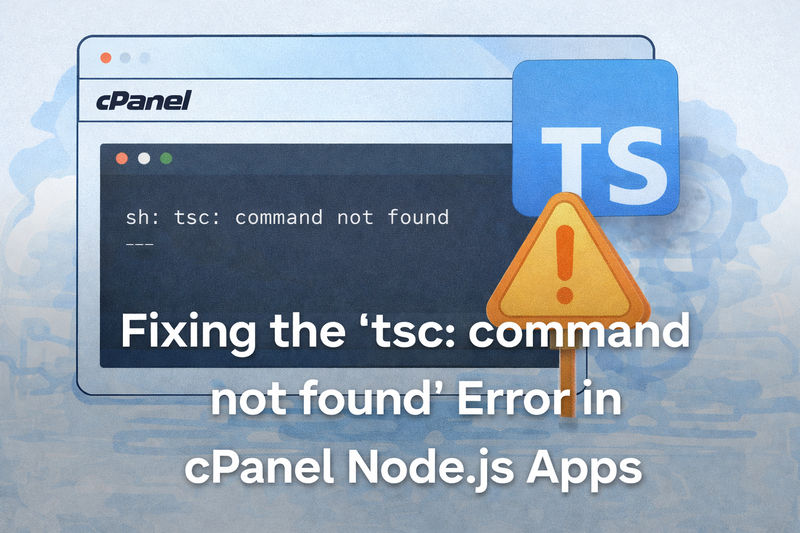
Fixing the “tsc: command not found” Error in cPanel Node.js Apps
Deploying a Node.js application on cPanel is usually straightforward. You upload your project, click a few buttons, install dependencies, run the build script, and the app springs to life.
But sometimes the journey pauses on an unexpected error:
If you're using TypeScript, this error can appear when running the build script from the cPanel interface. At first glance, it feels confusing because everything works perfectly on your local machine.
After some investigation, I discovered the issue is not actually TypeScript — it's how the Node.js environment in cPanel handles dependencies.
This guide explains the cause and the simple workflow that solved it.
Why the Error Happens
In Node.js projects, dependencies are separated into two groups:
- dependencies – required to run the application
- devDependencies – tools used during development (like TypeScript)
TypeScript is usually installed as a dev dependency:
The TypeScript compiler (tsc) lives inside this package.
However, when the Node.js application in cPanel is running in production mode, the system installs packages differently.
When you click Run NPM Install in the UI, cPanel effectively runs:
In production mode, npm skips devDependencies.
That means:
- TypeScript never gets installed
tscdoes not exist- The build script fails with
tsc: command not found
The Solution That Worked
The key is simple: temporarily switch the environment to development every time you need to run npm install so devDependencies can be installed.
Once TypeScript is installed, you can safely return the app to production.
Here is the exact workflow.
Step 1 — Switch the Environment to Development
Open the Node.js Application Manager inside cPanel.
Locate your application settings and change:
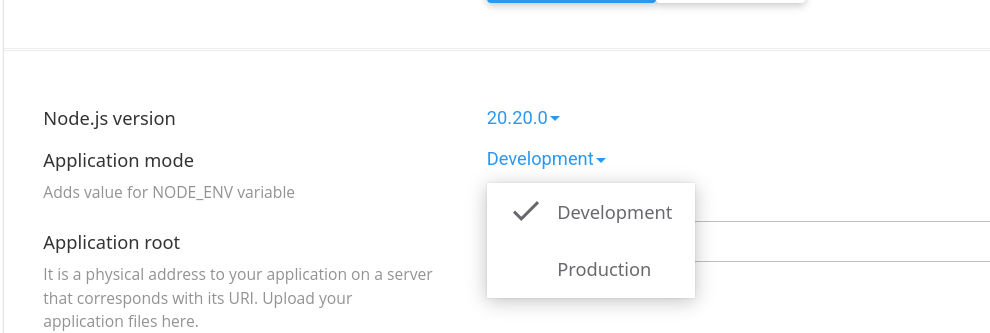
If an environment variable exists like:
delete it temporarily.

Step 2 — Install Dependencies
Click the Run NPM Install button in the interface.
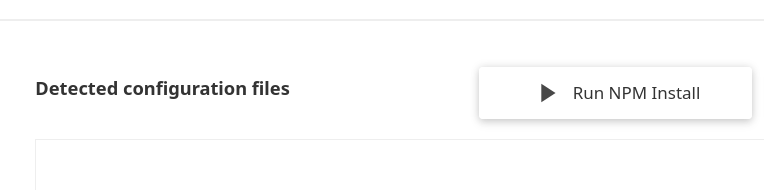
Because the application is now in development mode, npm installs both dependencies and devDependencies, including:
- TypeScript
- build tools
- development utilities
This places the TypeScript compiler inside:
Step 3 — Run the Build Script
Now click Run Build Script.
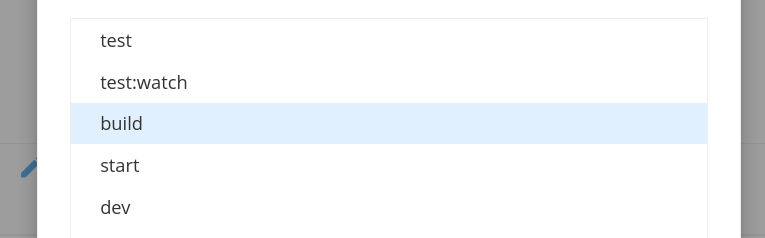
Since TypeScript is now installed, the build runs successfully.
Step 4 — Switch Back to Production
Once the build completes:
- Change the environment back to Production
- Restart the application if necessary
Note: this step can be carried as step 3 before "Running Build Script" step
Important Detail to Remember
Whenever you need to run npm install again, you should repeat the process:
- Switch to Development
- Run NPM Install
- Run Build Script
- Switch back to Production
This ensures all development tools remain available during the build process.
Deploying Node.js applications on cPanel sometimes reveals small quirks like this. The environment modes are helpful for optimization, but they can quietly prevent development tools from installing.
Once you understand how production mode treats devDependencies, the solution becomes simple:
temporarily install dependencies in development mode, build the project, then return to production.
After that, your TypeScript project runs smoothly — just as it does locally.